The Dashboard provides an overview of all locations you have registered with Cantaloupe Play. To access the Dashboard, you must first sign in to the Operator Portal.
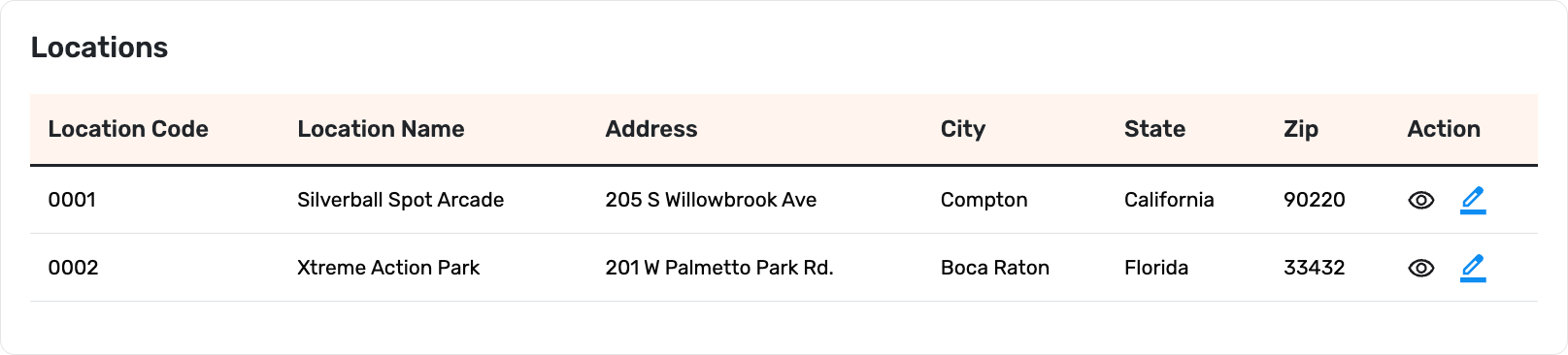
Locations
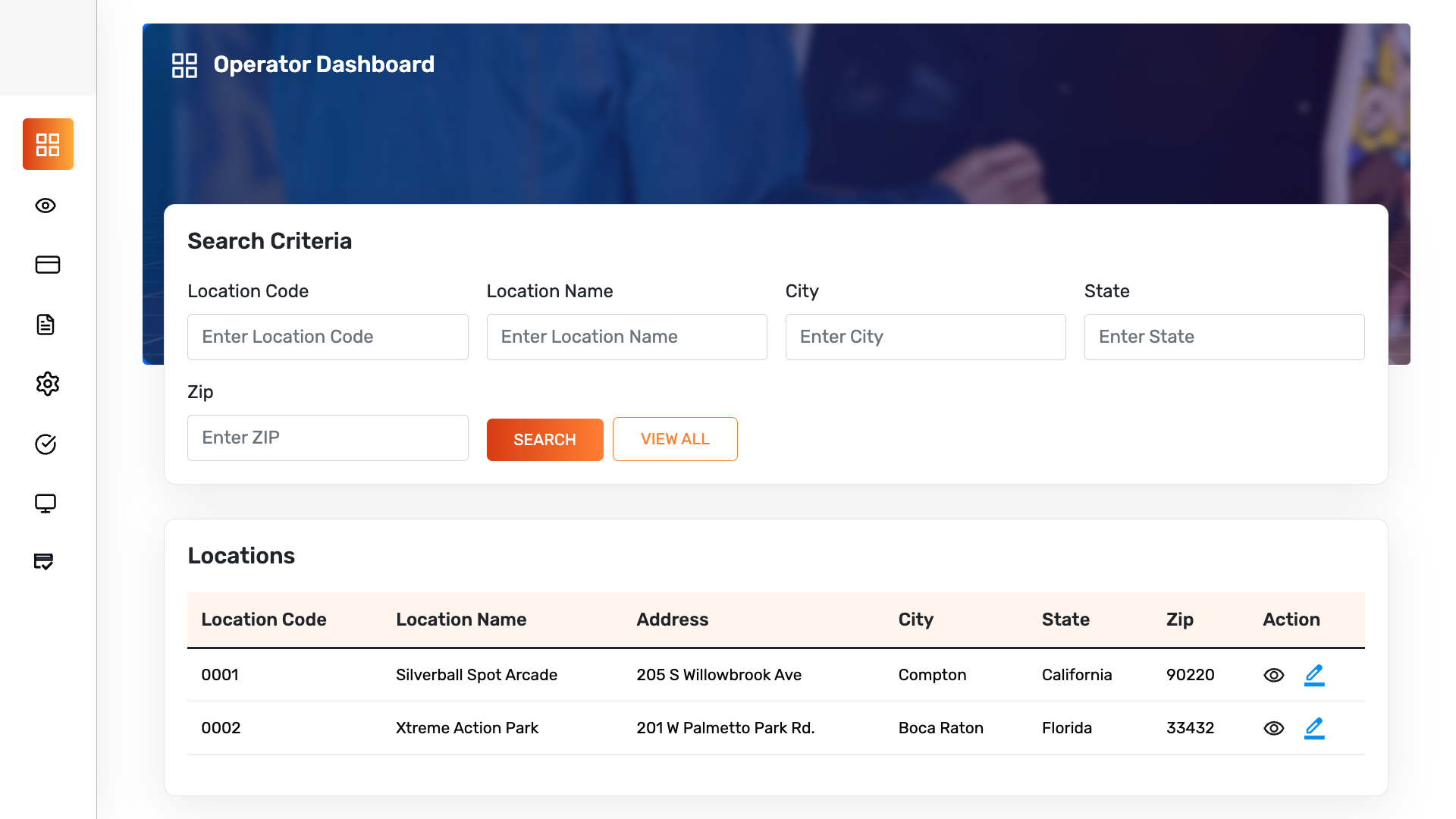
When you first log in, you will see the Dashboard, which displays all locations where you have Cantaloupe Play equipment installed. On the right side of the screen, you will find options that allow you to view or edit the machine list for each of your locations, providing quick access to manage your equipment efficiently.
To edit location details, click on the edit button next to the location you want to modify.
Configure Location
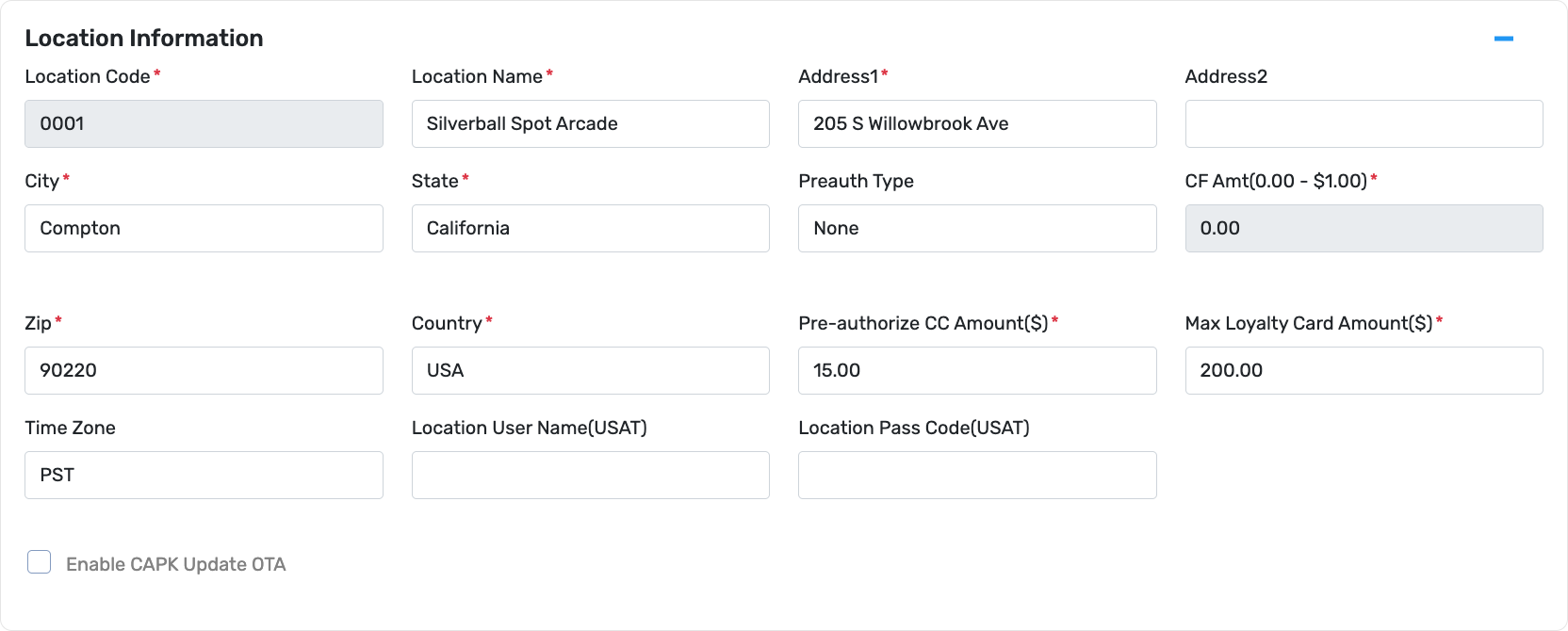
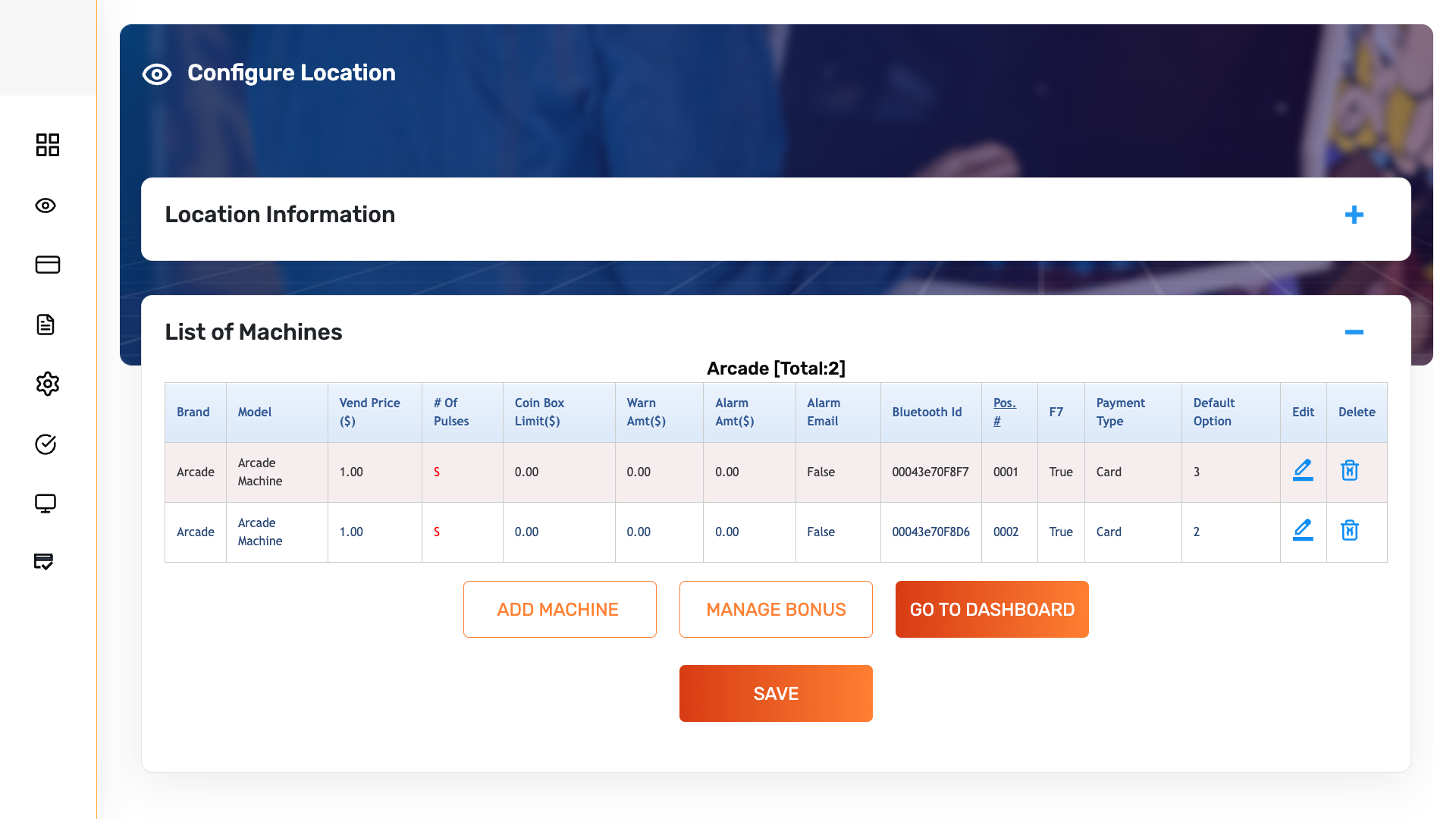
Once you choose a location to edit, you will be automatically redirected to the Configure Location page.
The Location Information tab is minimized by default. Click on the tab to view and edit the details and settings.

List of Machines
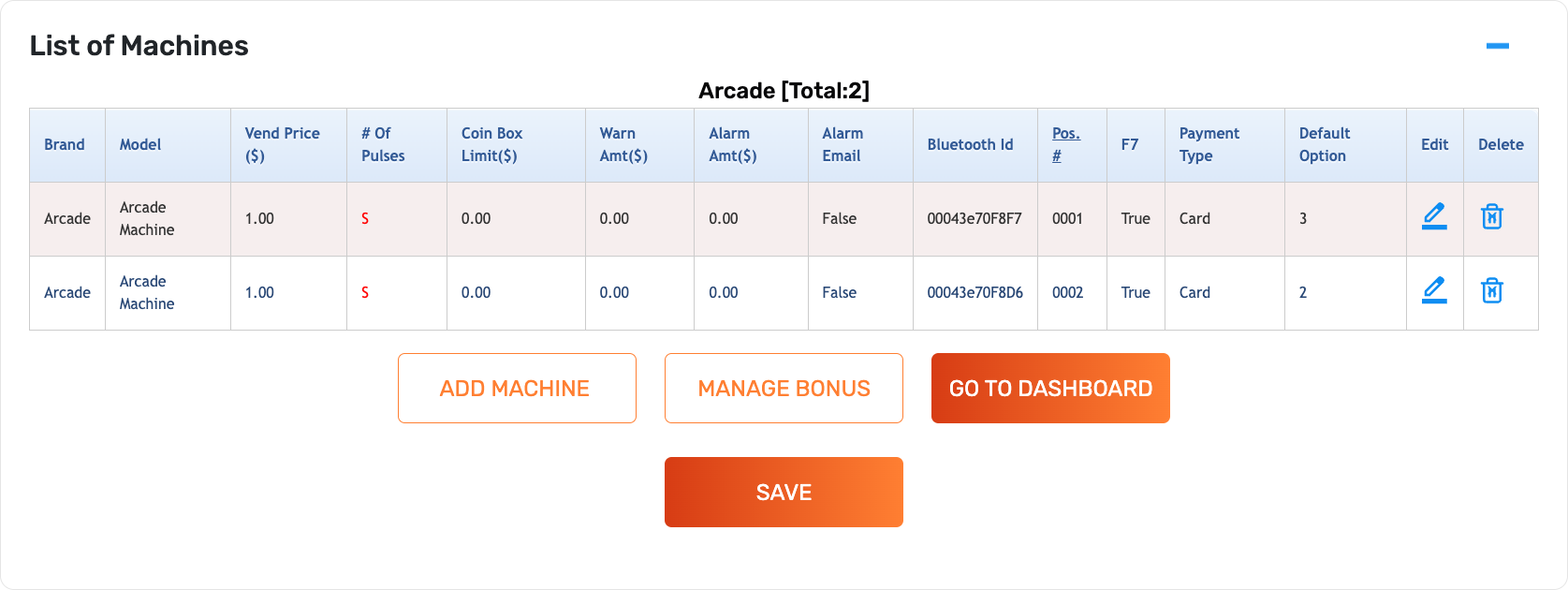
When you access this page, you will first see a list of all machines for the selected location. To make changes, click Edit on the desired machine. Do not click Delete, as this will permanently remove all information for that machine from your portal. When a machine is selected for editing, it will be highlighted in yellow, and the editable fields will appear at the bottom of the page. From here, you can update the Price, Position, and specify whether the machine accepts Coin and/or Cash. Note that the number of Pulses must match the dollar value in quarters (for example, $5.00 equals 20 pulses).
You can add, edit, and delete machine information from the List of Machines tab.
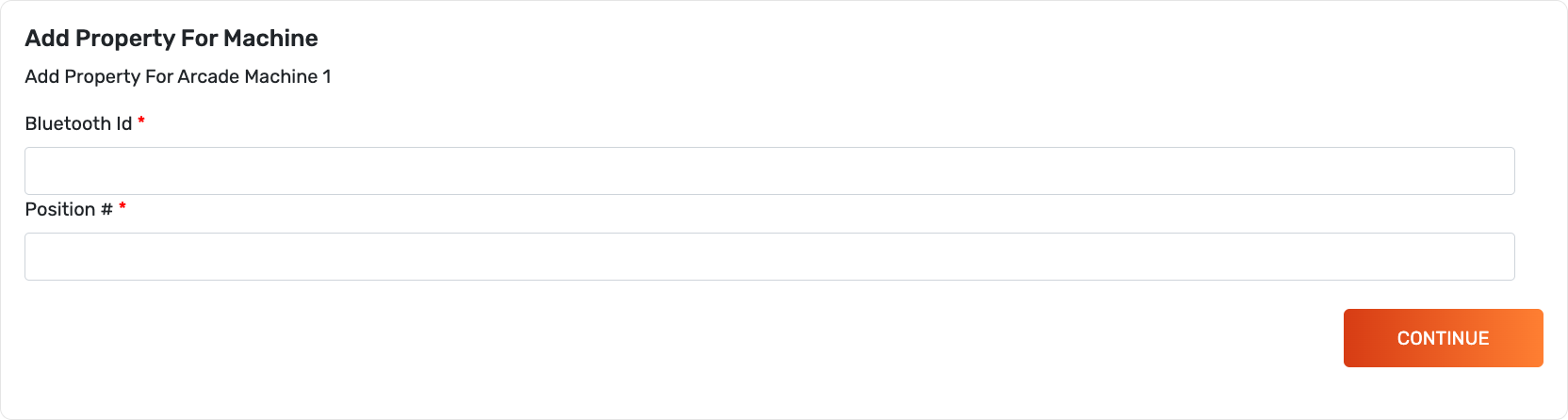
Add Machine(s)
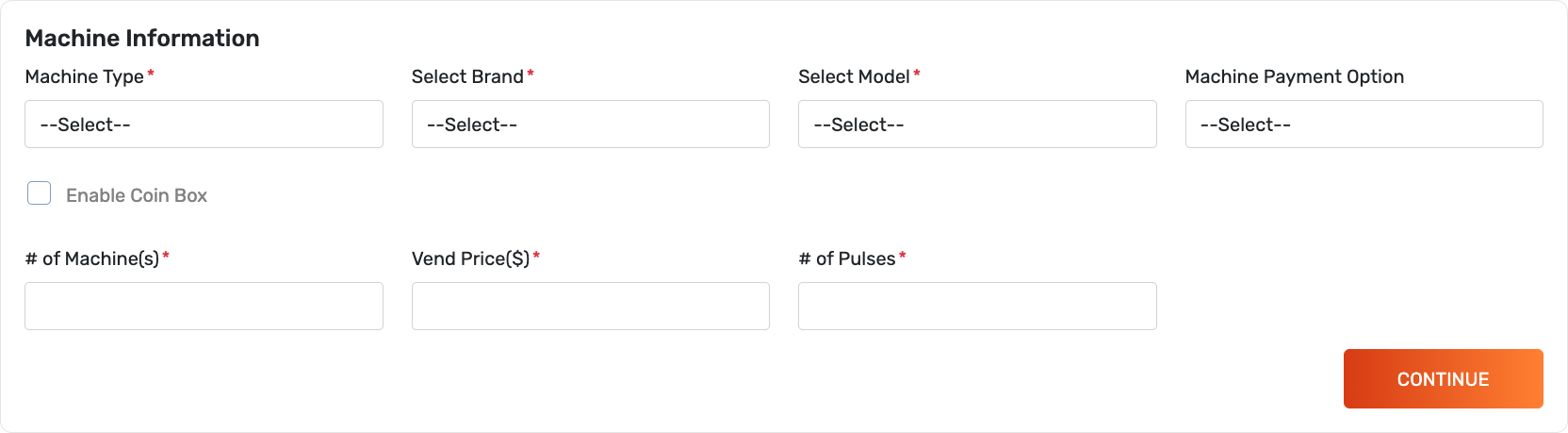
The Machine Information tab will appear once the Add Machine button is clicked.

Edit Machine(s)
To modify the settings of a machine, click on the edit button next to it. The entry will be highlighted, and the settings will be displayed at the bottom of the page.
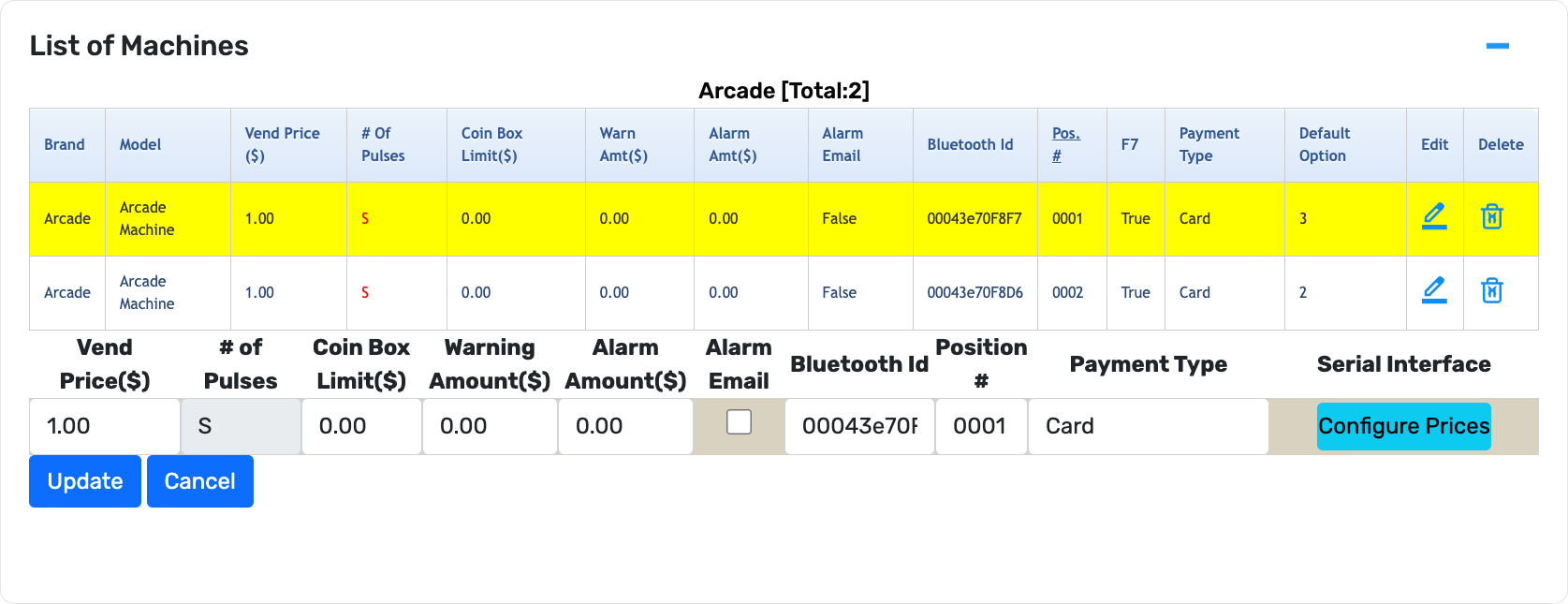
The ‘# of Pulses’ must be updated if the ‘Vend Price ($)’ is changed!
Multiply the vend price by four to get the total number of pulses. 1 Pulse = $0.25.
Once finished, click the Update button to save your changes.

Manage Bonus
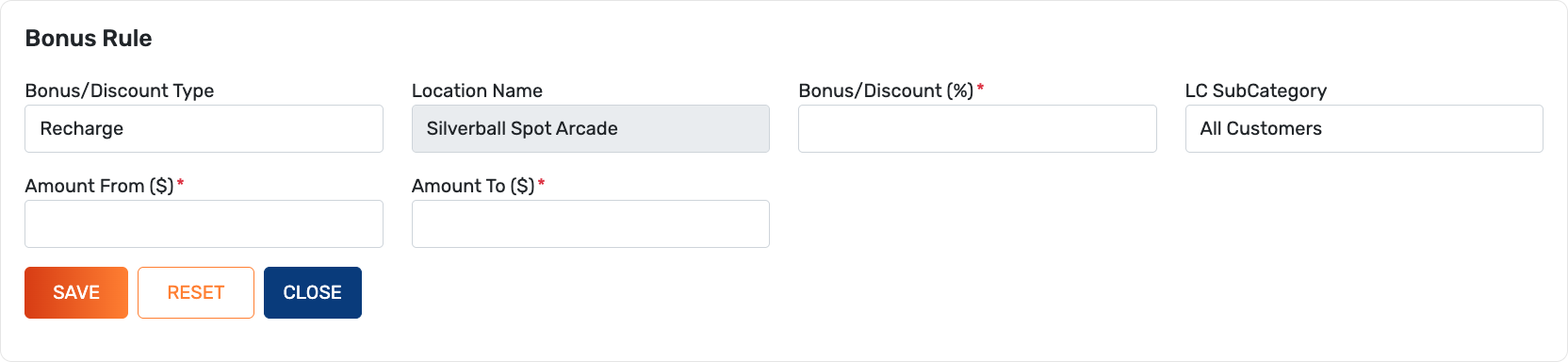
In this section, we will explain how to add a reload bonus for loyalty card customers. Scroll to the bottom of the page for the location where you want the promotion applied, then click the corresponding button to access the promotion setup page. From there, you can specify the bonus percentage that customers will receive for a reload amount within the defined Amount From and Amount To range. Once you click Save, the promotion will appear in the list below, confirming that it has been successfully added.

On the Manage Bonus page, you can add or edit existing recharge bonuses and machine discounts. Scroll to the bottom of the page for the location where you want the promotion applied, then click the corresponding button to access the promotion setup page. From there, you can specify the bonus percentage that customers will receive for a reload amount within the defined ‘Amount From’ and ‘Amount To’ range. Once you click Save, the promotion will appear in the list below, confirming that it has been successfully added.